

Immich is an open-source intelligent photo album application that allows you to easily back up, organize, and manage your photos on your own server. Immich helps you browse, search, and organize your photos and videos with ease, without compromising your privacy. For the original project's official website and GitHub repository, please visit - https://immich.app/ - https://github.com/immich-app/immich. The goal of our project is to demonstrate deploying Immich on Raspberry Pi 5 or other x86-based main control platforms, extended with AX650N/AX8850 AI acceleration cards. By leveraging these accelerator cards for computational offloading, we aim to enhance Immich's efficiency in processing photos. Through this example, we hope to guide Immich users in expanding high-efficiency deployments of Immich across a broader range of hardware platforms by adding dedicated AI accelerator cards. ## Reference Links We have open-sourced the modifications to the Immich codebase on GitHub: https://github.com/ZHEQIUSHUI/immich ## Support Platform - AX650/AX8850 - AX650N DEMO Board - [M4N-Dock(爱芯派Pro)](https://wiki.sipeed.com/hardware/zh/maixIV/m4ndock/m4ndock.html) - [M.2 Accelerator card](https://axcl-docs.readthedocs.io/zh-cn/latest/doc_introduction.html#id4) ## Support Models In the Immich project, the CLIP model is the primary component with high computational demands for smart album features. To further improve accuracy, we have adopted larger-parameter models: **CLIP-L/14-336** and **CN-CLIP-L/14-336**. Precompiled models optimized for Axera AI accelerator cards are available at the following links: - [CLIP-L/14-336 (English)](https://huggingface.co/AXERA-TECH/ViT-L-14-336__axera) - [CN-CLIP-L/14-336 (Chinese)](https://huggingface.co/AXERA-TECH/ViT-L-14-336-CN__axera) ### Performance Benchmarks | Model | Input Shape | Latency (ms) | CMM Usage (MB) | |-------|-------------|--------------|----------------| | `cnclip_vit_l14_336px_vision_u16u8.axmodel` | 1 x 3 x 336 x 336 | 88.475 ms | 304 MB | | `cnclip_vit_l14_336px_text_u16.axmodel` | 1 x 52 | 4.576 ms | 122 MB | These models enable significantly faster image and text embedding generation on Axera-powered hardware, greatly enhancing Immich's photo tagging, search, and organization capabilities while maintaining high accuracy. ## How to use We use the Raspberry Pi 5—a platform with one of the largest user bases—as our example for demonstration. However, the setup process can also be referenced and adapted for other aarch64 or x86 host platforms. ### Hardware Setup  Ensure the following hardware is properly configured: A Raspberry Pi 5 with an M.2 AI accelerator card (e.g., AX650N) correctly installed. Use a compatible M.2 HAT+ expansion board that supports 2280-length cards (most AX650 cards are 2280). Confirm that the PCIe connection is active by checking with lspci: ```bash lspci | grep -i axera ``` Expected output: ```text 0001:01:00.0 Multimedia controller: Axera Semiconductor Co., Ltd Device 0650 (rev 01) ``` ### Software Environment Setup Follow these steps to prepare the software environment on Raspberry Pi 5 (or other supported platforms): #### Install AXCL Driver (Host-side) Refer to the official AXCL documentation for detailed instructions: [AXCL Setup Guide - Raspberry Pi 5](https://axcl-docs.readthedocs.io/zh-cn/latest/doc_guide_setup.html#raspberry-pi-5) Key steps include: Update Raspberry Pi firmware and enable PCIe: ```bash sudo rpi-eeprom-update -a ``` Modify /boot/firmware/config.txt to enable PCIe: ``` dtparam=pciex1 [all] dtoverlay=pciex1-compat-pi5,no-mip ``` Reboot and verify device detection using lspci. Install the AXCL .deb package: ```bash sudo apt install ./axcl_host_aarch64_Vxxx.deb ``` Source environment variables: ```bash source /etc/profile ``` #### Install PyAXEngine (Python NPU Runtime) Refer to the PyAXEngine documentation: [PyAXEngine GitHub](https://github.com/AXERA-TECH/pyaxengine) Install the Python wheel package for NPU inference: ```bash pip install axengine-x.x.x-py3-none-any.whl ``` #### Verification: Check Installation Status After completing the setup, run the following command to verify that the accelerator card is recognized and functioning: ```bash axcl-smi ``` You should see output similar to: ```text (base) axera@raspberrypi:~/samples/immich $ axcl-smi +------------------------------------------------------------------------------------------------+ | AXCL-SMI V3.6.4_20250819020149 Driver V3.6.4_20250819020149 | +-----------------------------------------+--------------+---------------------------------------+ | Card Name Firmware | Bus-Id | Memory-Usage | | Fan Temp Pwr:Usage/Cap | CPU NPU | CMM-Usage | |=========================================+==============+=======================================| | 0 AX650N V3.6.4 | 0001:01:00.0 | 164 MiB / 945 MiB | | -- 41C -- / -- | 1% 0% | 18 MiB / 7040 MiB | +-----------------------------------------+--------------+---------------------------------------+ +------------------------------------------------------------------------------------------------+ | Processes: | | Card PID Process Name NPU Memory Usage | |================================================================================================| ``` If you see the AX650N card listed with valid memory usage, your hardware and software setup is successful. ### Setup Download ``` hf download AXERA-TECH/immich --local-dir AXERA-TECH/immich cd AXERA-TECH/immich ``` #### Setup immich server ``` sudo docker load -i ax-immich-server-aarch64.tar.gz unzip docker-deploy.zip cp example.env .env sudo docker compose -f docker-compose.yml -f docker-compose.override.yml up -d ``` the following is ``` (immich) axera@raspberrypi:~/samples/immich $ sudo docker compose -f docker-compose.yml -f docker-compose.override.yml up -d WARN[0000] /home/axera/samples/immich/docker-compose.override.yml: the attribute `version` is obsolete, it will be ignored, p lease remove it to avoid potential confusion [+] Running 3/3 ✔ Container immich_redis Running 0.0s ✔ Container immich_postgres Started 1.8s ✔ Container immich_server Started 1.3s ``` #### Download clip axmodel ``` cd ~/.cache/immich_ml/clip hf download AXERA-TECH/ViT-L-14-336-CN__axera --local-dir ViT-L-14-336-CN__axera ``` the following is ``` (base) axera@raspberrypi:~/.cache/immich_ml/clip $ tree . ├── ViT-L-14-336-CN__axera ├── config.json ├── textual │ ├── merges.txt │ ├── model.axmodel │ ├── special_tokens_map.json │ ├── tokenizer_config.json │ ├── tokenizer.json │ └── vocab.json └── visual ├── model.axmodel └── preprocess_cfg.json ``` #### Setup ml_immich Run the HTTP service of immich independently. ``` pip install -r requirements.txt pip install immich_ml-1.129.0-py3-none-any.whl python -m immich_ml ``` the following is ``` (immich) axera@raspberrypi:~/samples/immich $ python -m immich_ml [10/08/25 11:11:40] INFO Starting gunicorn 23.0.0 [10/08/25 11:11:40] INFO Listening at: http://[::]:3003 (3145057) [10/08/25 11:11:40] INFO Using worker: immich_ml.config.CustomUvicornWorker [10/08/25 11:11:40] INFO Booting worker with pid: 3145062 [INFO] Available providers: ['AXCLRTExecutionProvider'] ``` ### Run If the above setup completes successfully, and assuming your Raspberry Pi's IP address is 10.126.33.241, you can access the Immich login page by opening a browser on any device within the same local network and navigating to ``` http://10.126.33.241:2283/ ```  On first access, you will be prompted to register a new user account. Don't worry — everything runs offline on your Raspberry Pi. If this is just for a demo or testing purpose, feel free to enter any username and password. ### Enable the Smart Search 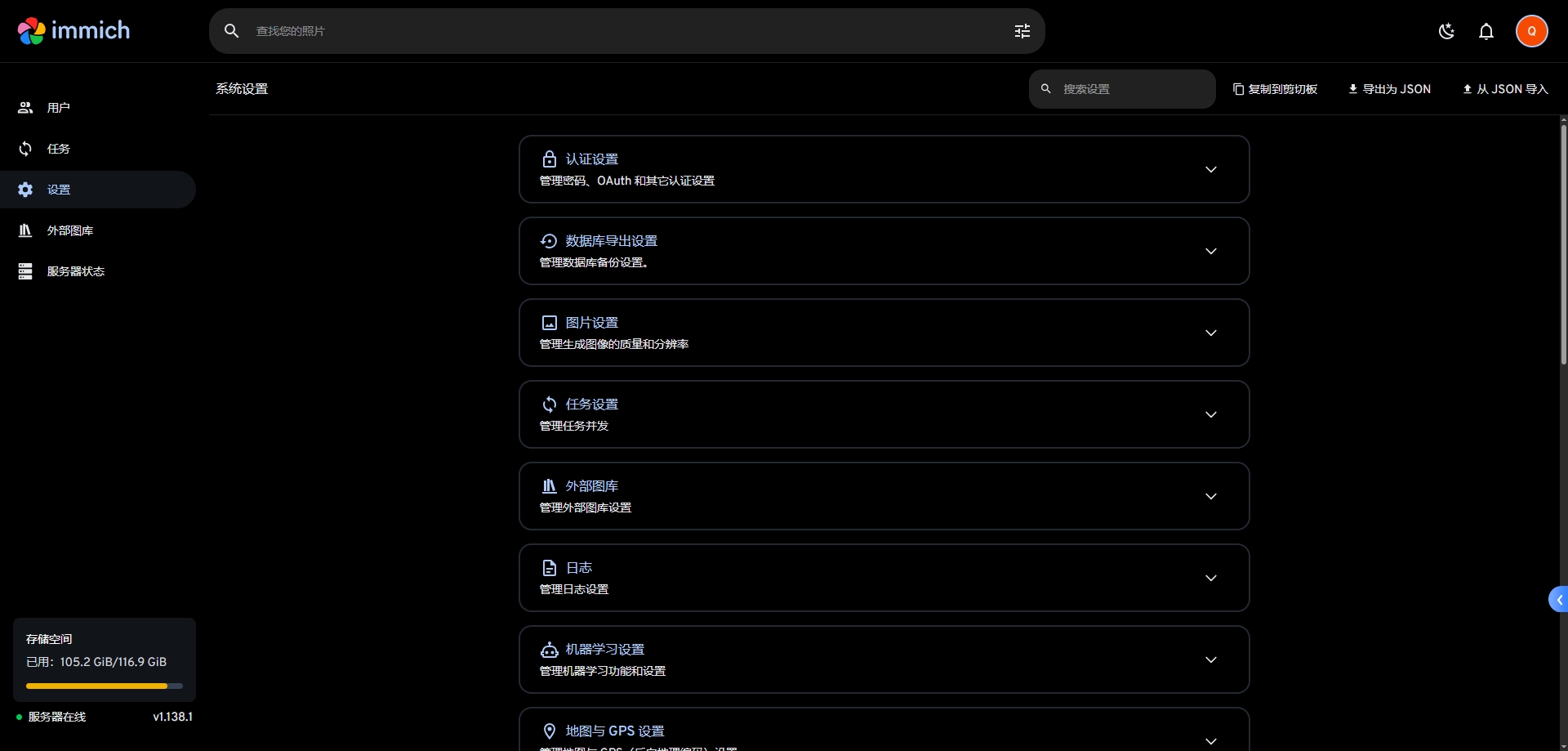 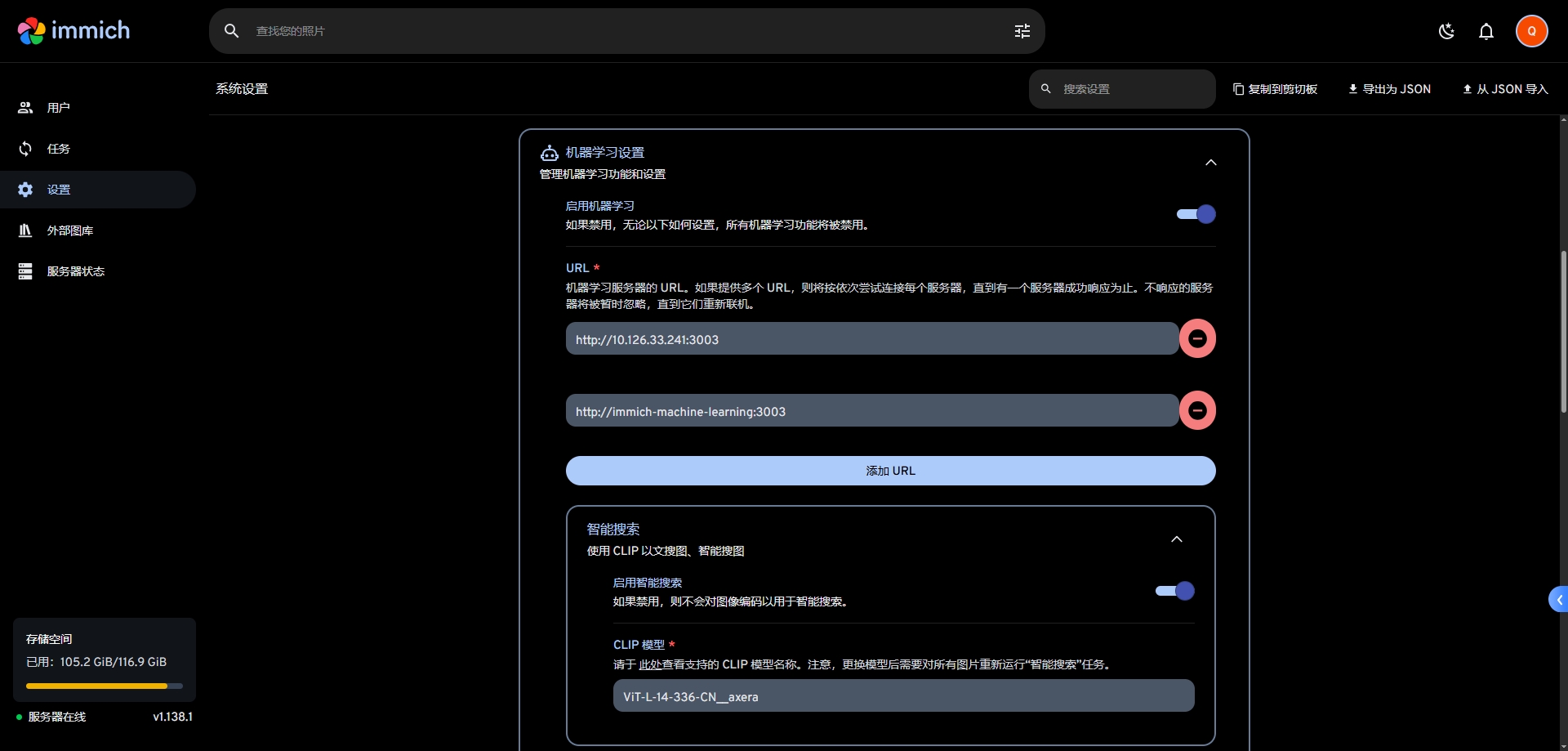 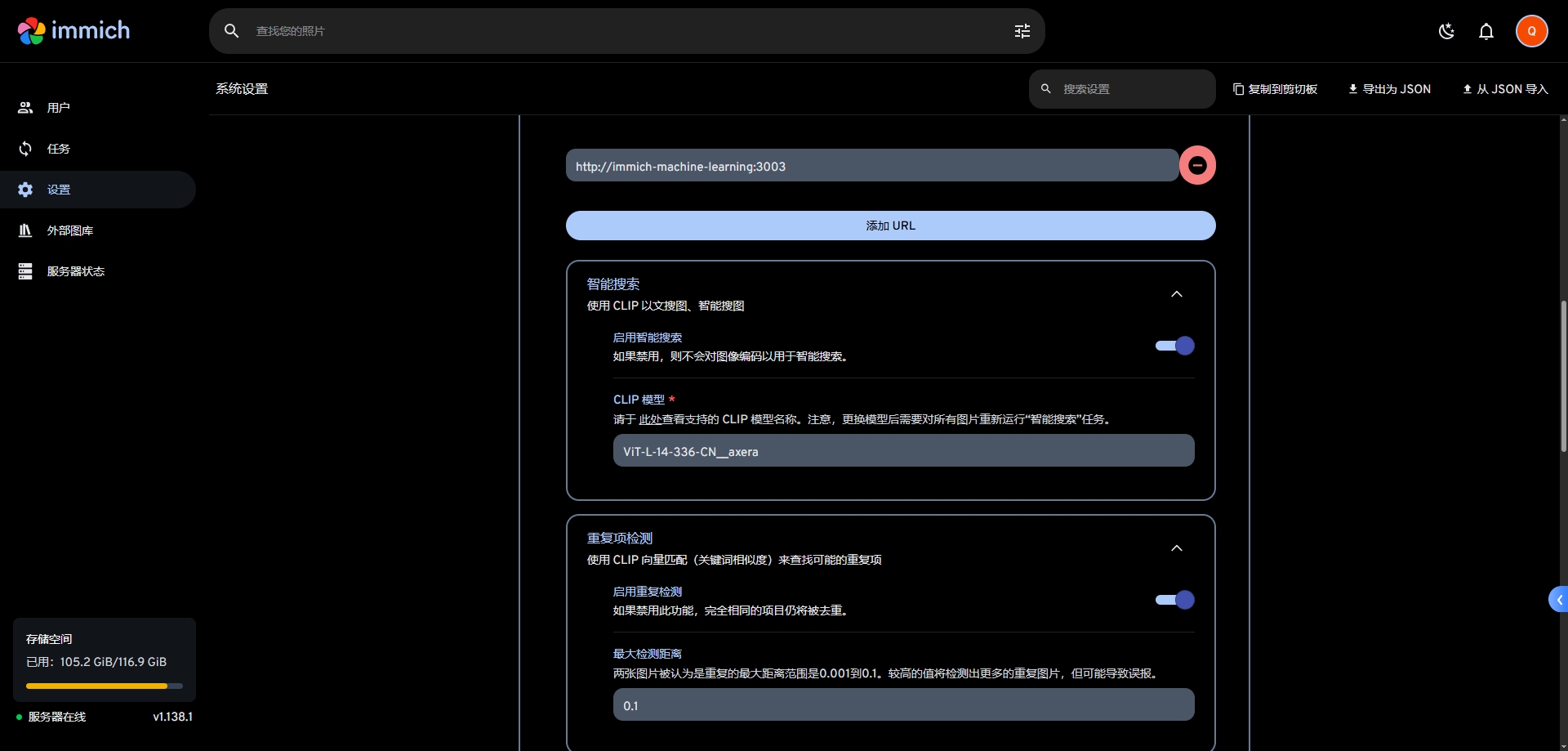  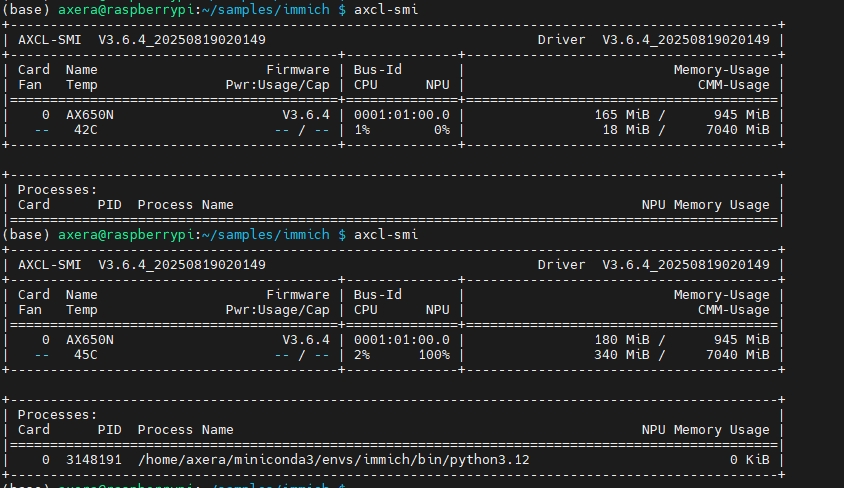    ## immich docs For more usage information about Immich, please refer to the [Immich documentation](https://docs.immich.app/overview/quick-start/).